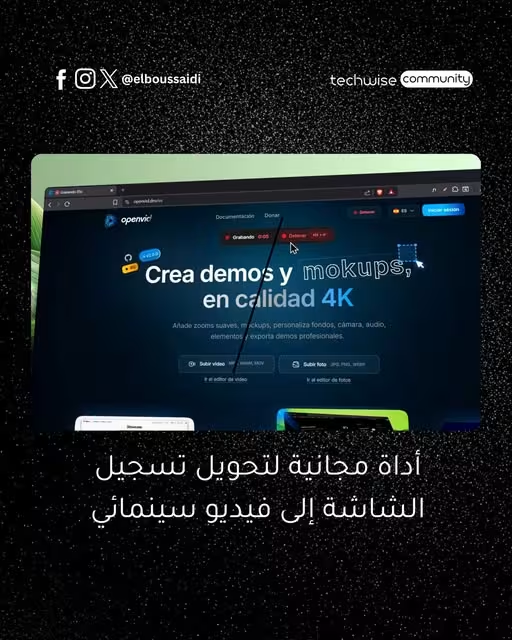


Create demos and screen
in 4K quality
Add smooth zooms, mockups, customize backgrounds, camera, audio, elements, and export professional demos.
Upload videoMP4, WebM, MOV
Upload photoJPG, PNG, WEBP
Create your shot in
four easy steps
Follow these instructions to capture your screen. The whole process happens in your browser, no installation required.
1
Start capturing
Click the button below. Your browser will ask you what you want to share. For optimal performance and cleaner shots, we recommend selecting a Tab or Specific window.
Brave Tab
Window
openvid - Create shots...
RecordingSteps.tsx
Also share system audio
2
Hide distractions
When sharing your screen, your browser will automatically show a floating bar notifying that the capture is active. Click Hide to make sure it doesn't appear in your final video.
https://openvid.dev is sharing a window.
Hide
3
Get ready for action
No rush. Once you approve the permissions in step 1, we will start a 3-second countdown. You will see the indicator in the browser tab so you know exactly when to start speaking or moving the mouse.
5
Switch tabs!
The recording will start on the screen you selected.
4
Cut and to the editor
When you finish your explanation, simply stop the recording. The file will not be downloaded immediately; it will magically move to our web editor so you can apply zooms, backgrounds, and crops.
Grabando00:42
Polished video
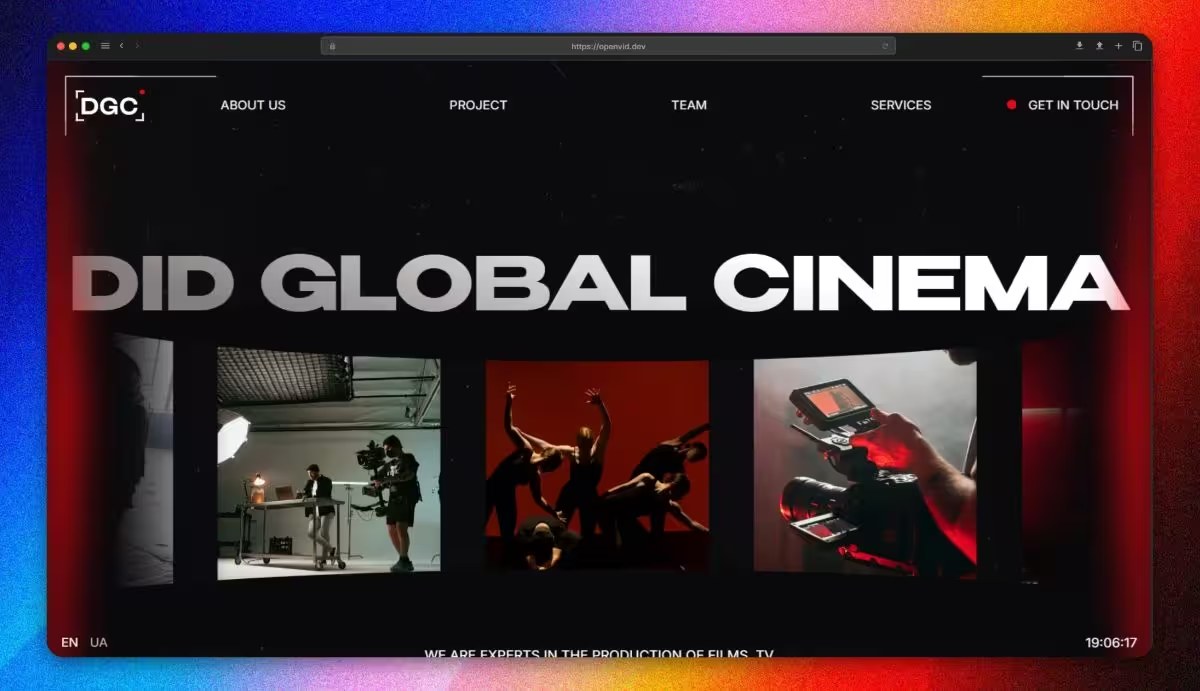
demos created.
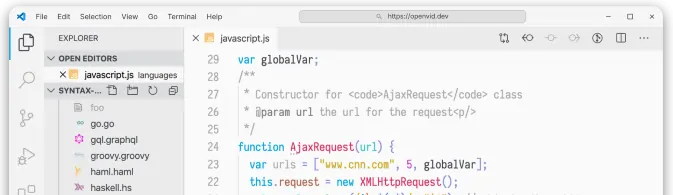
Watch high-fidelity screen recordings and cinematic clips generated by our community.
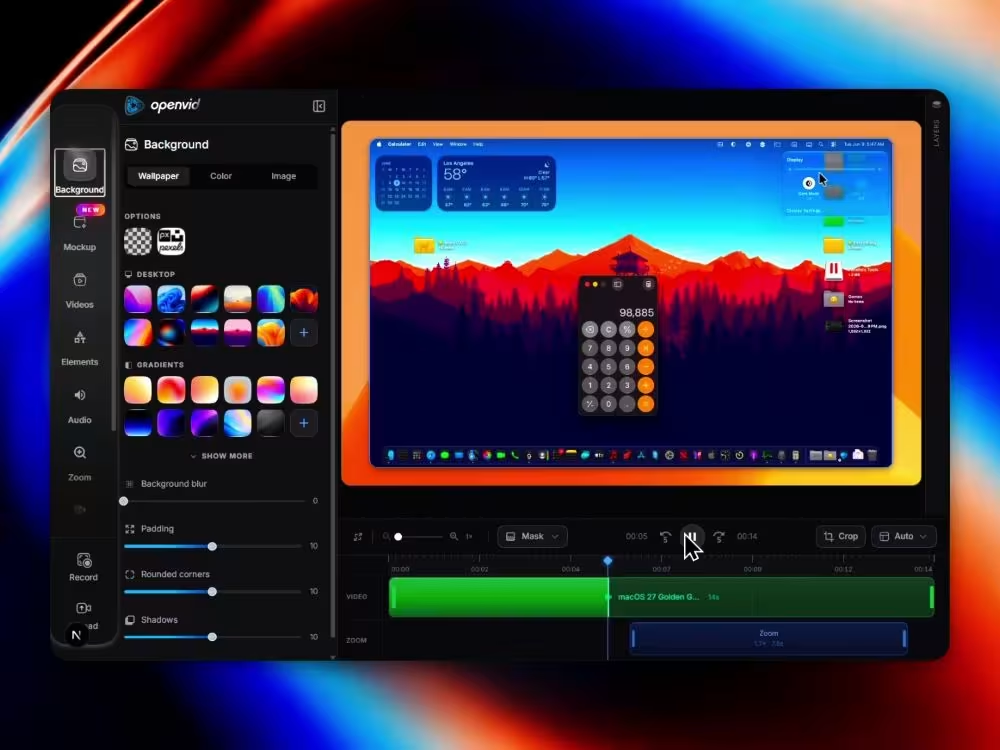
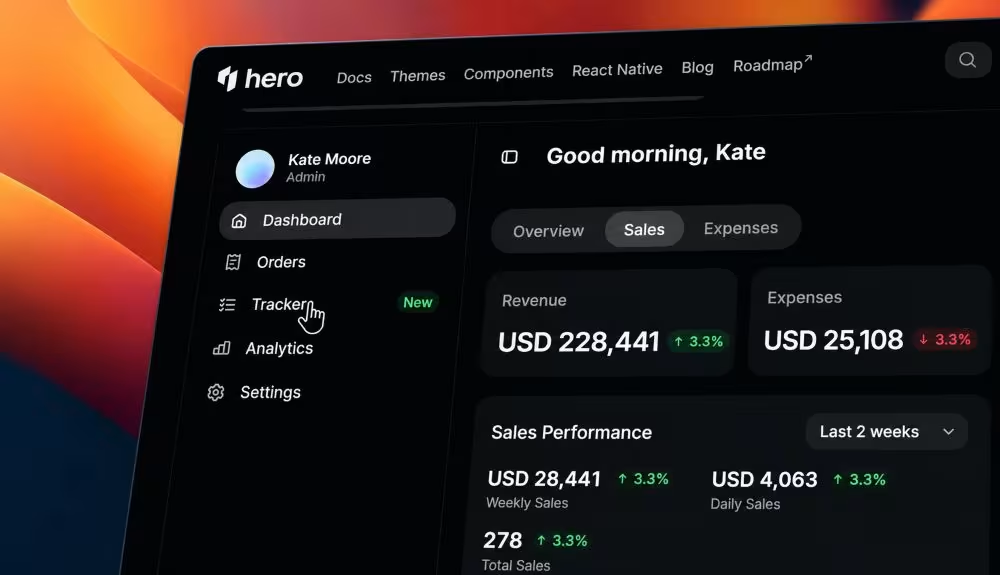
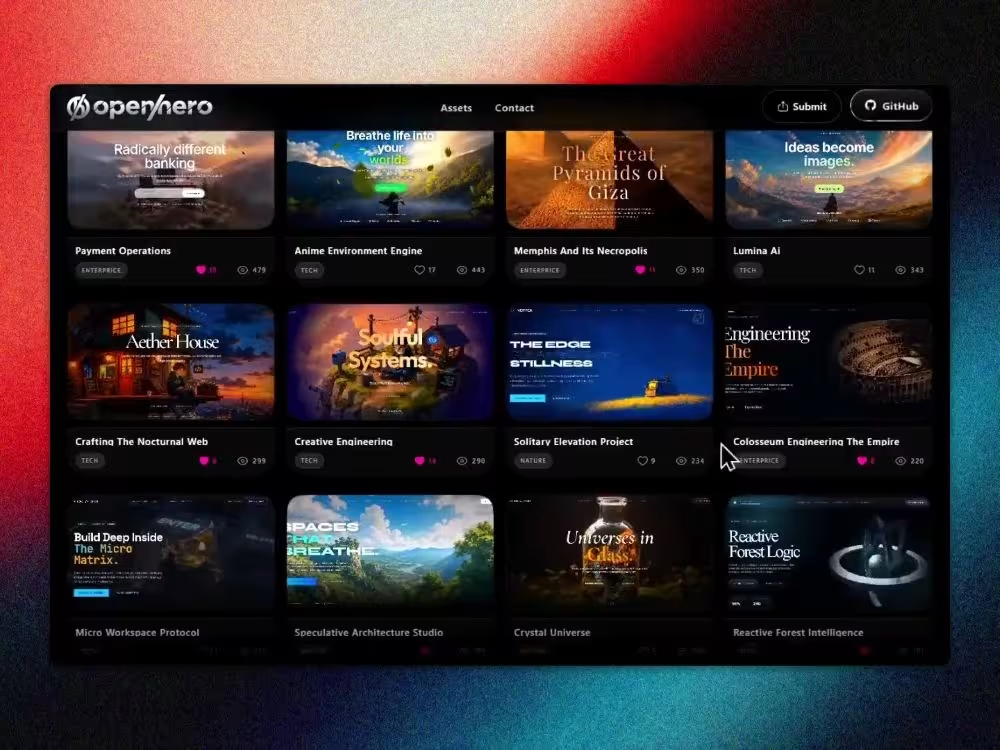
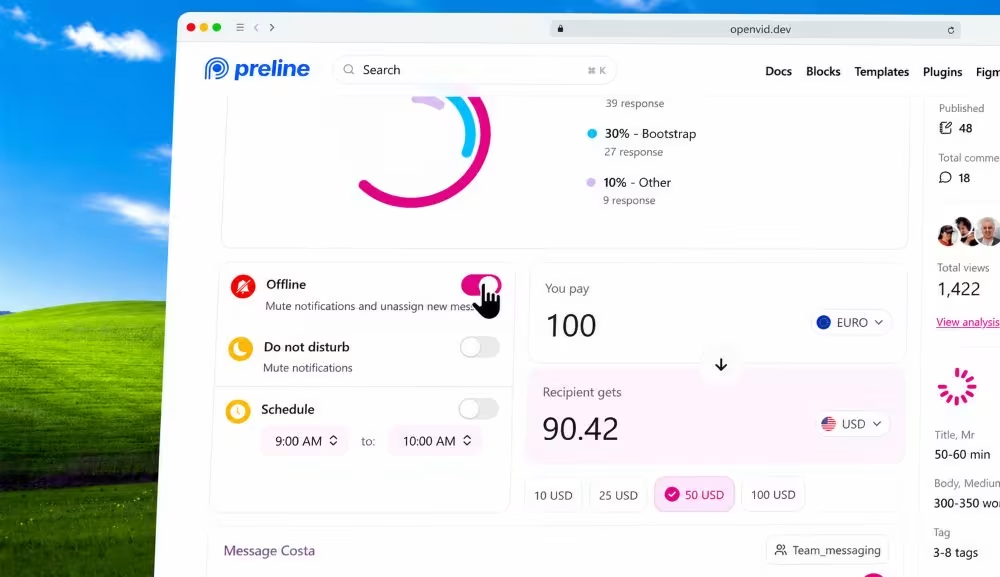
Polished image
static exports.
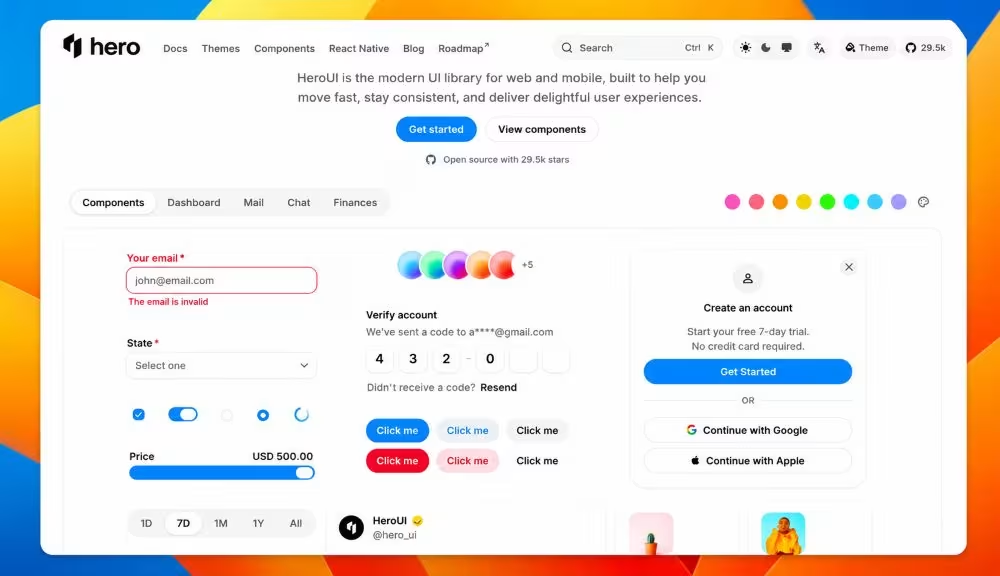
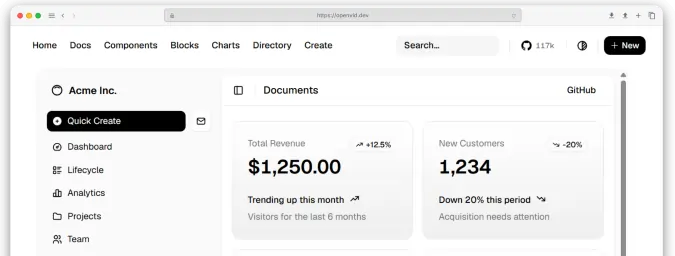
Perfect for your landing pages, social media, or changelogs. Export ultra-crisp mockups in one click.
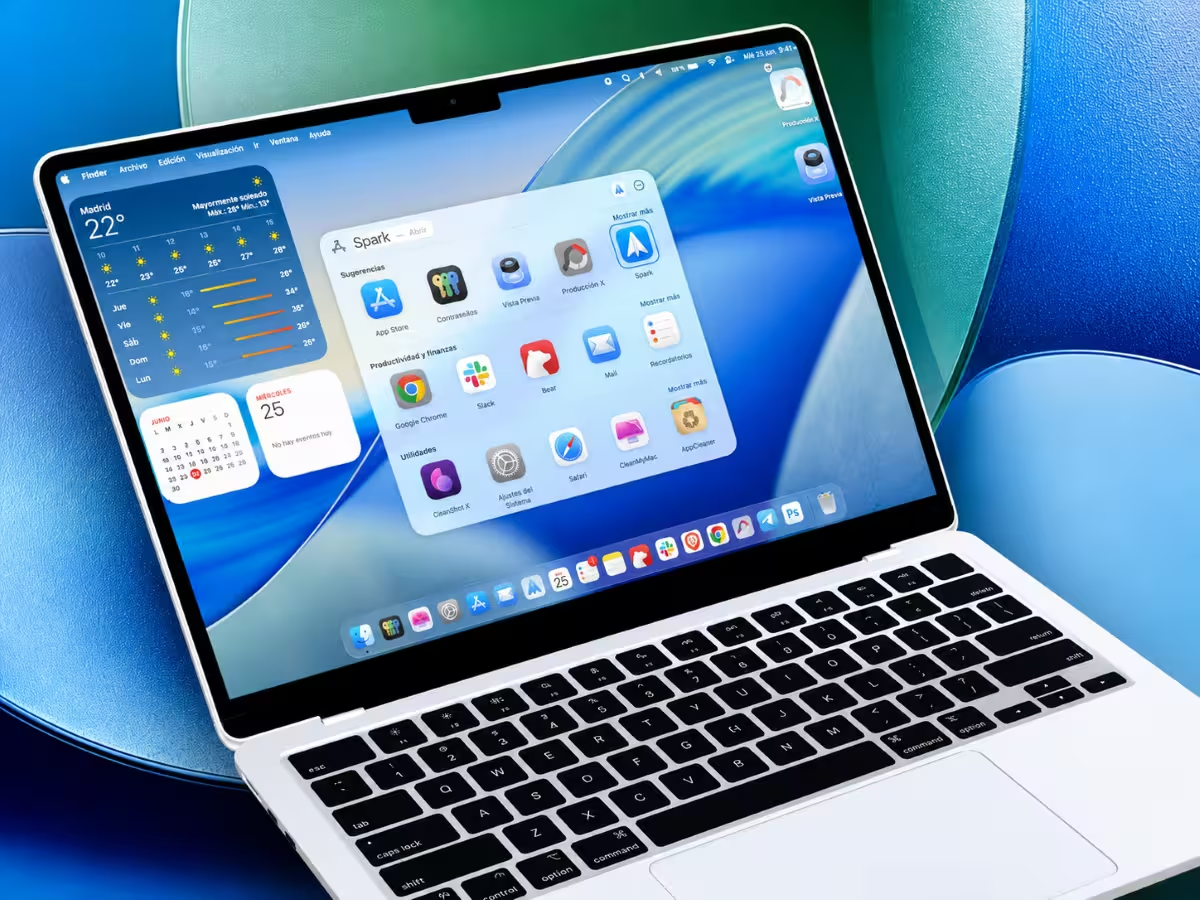
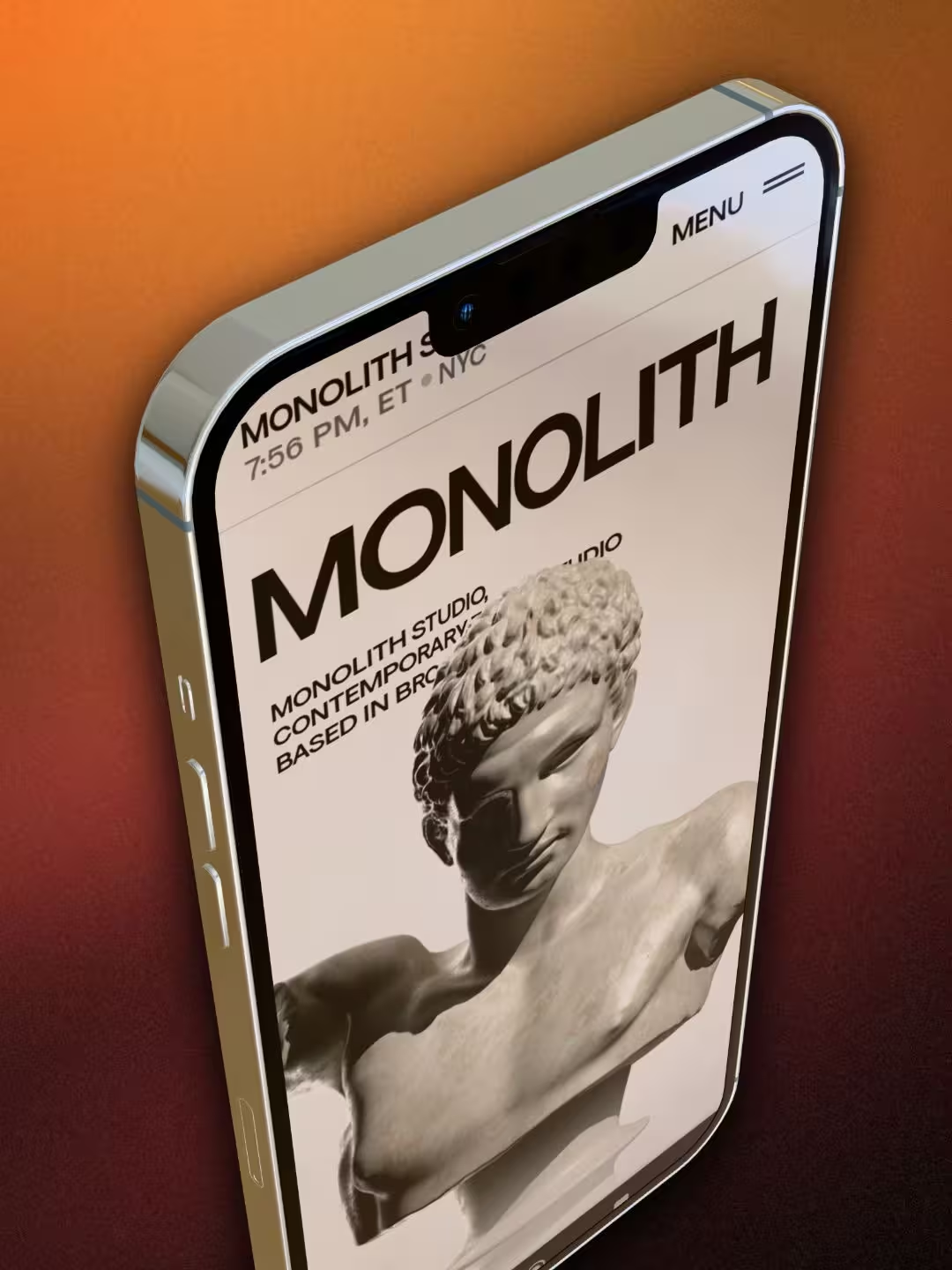
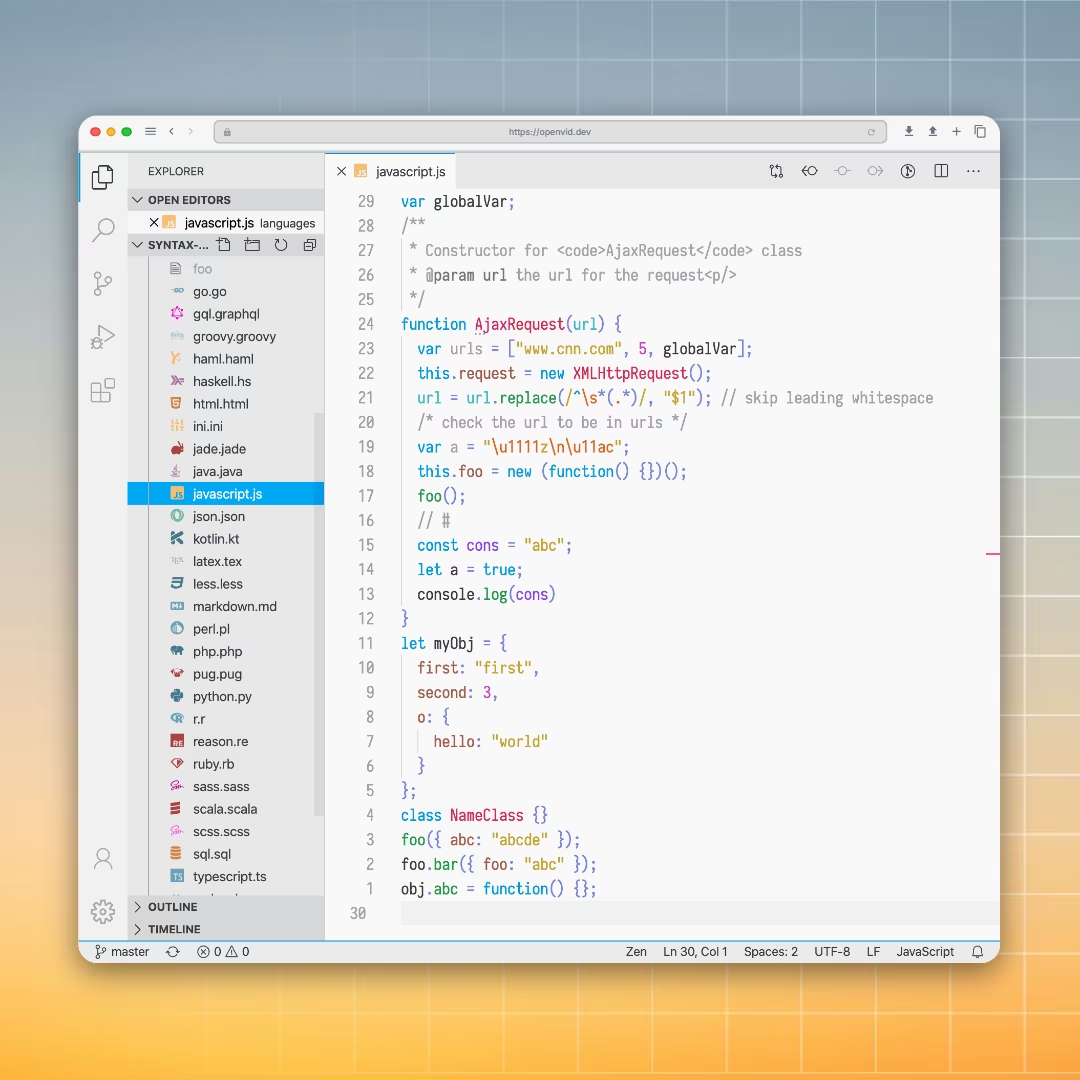
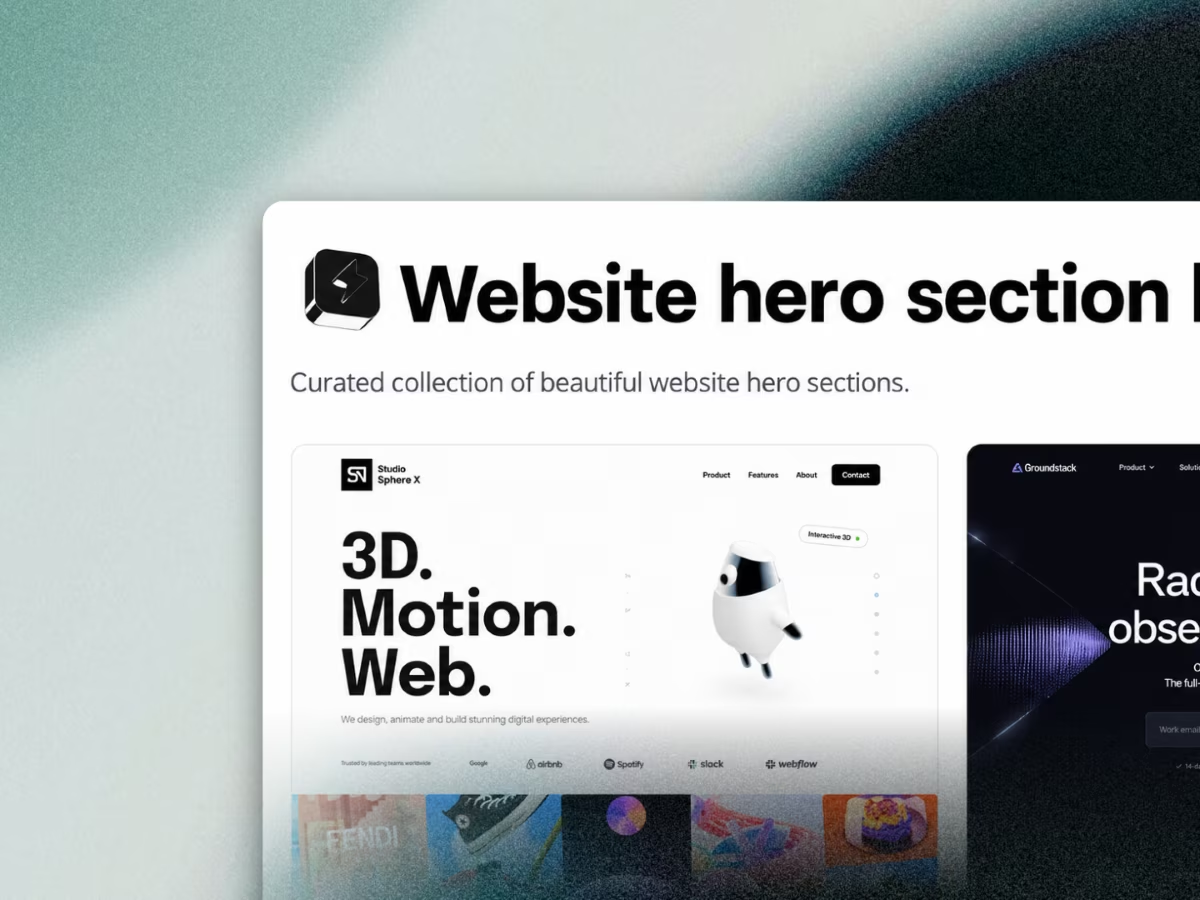
Everything you need to ship
stunning demos.
Record, enhance, and export - cinematic results directly in your browser, no installs required.
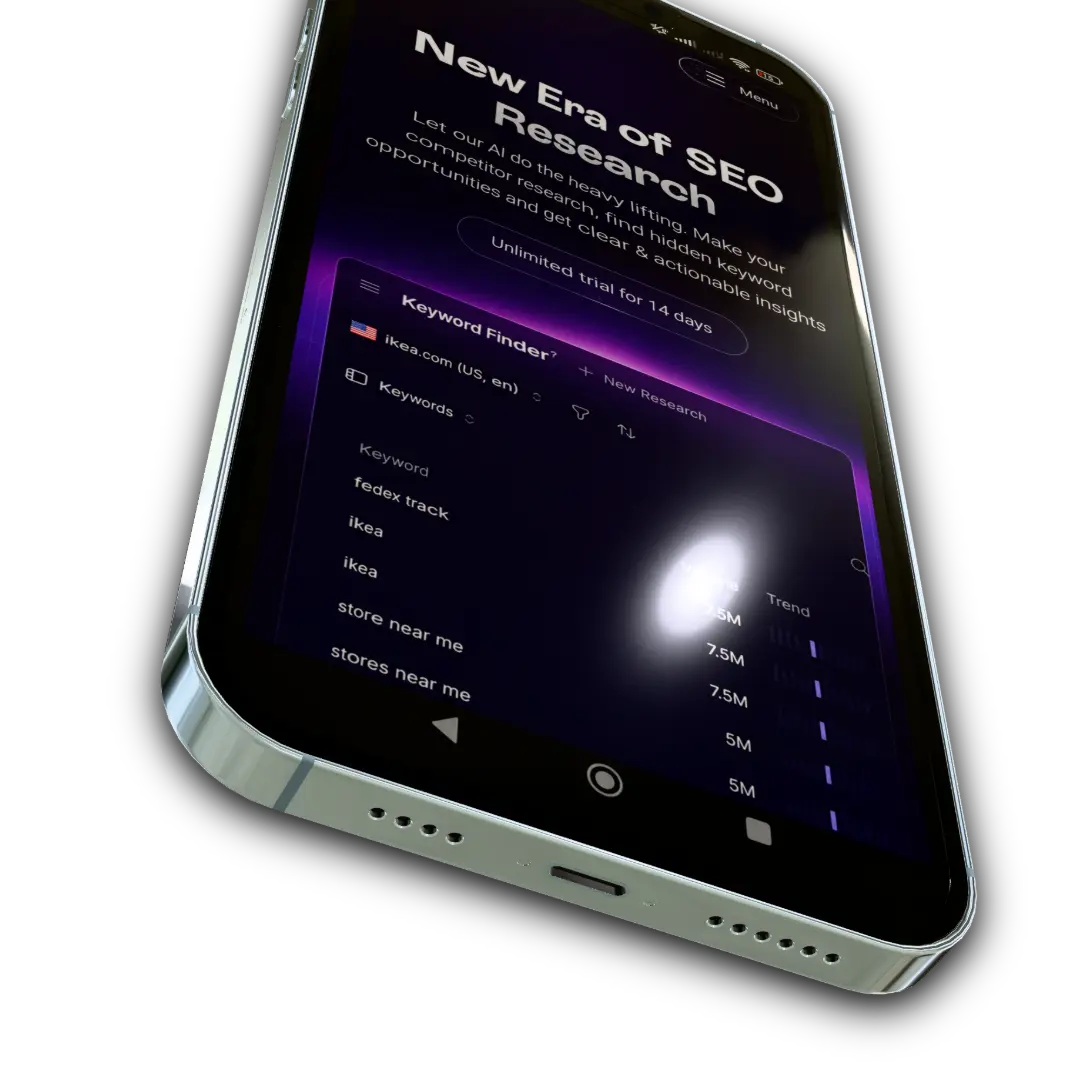
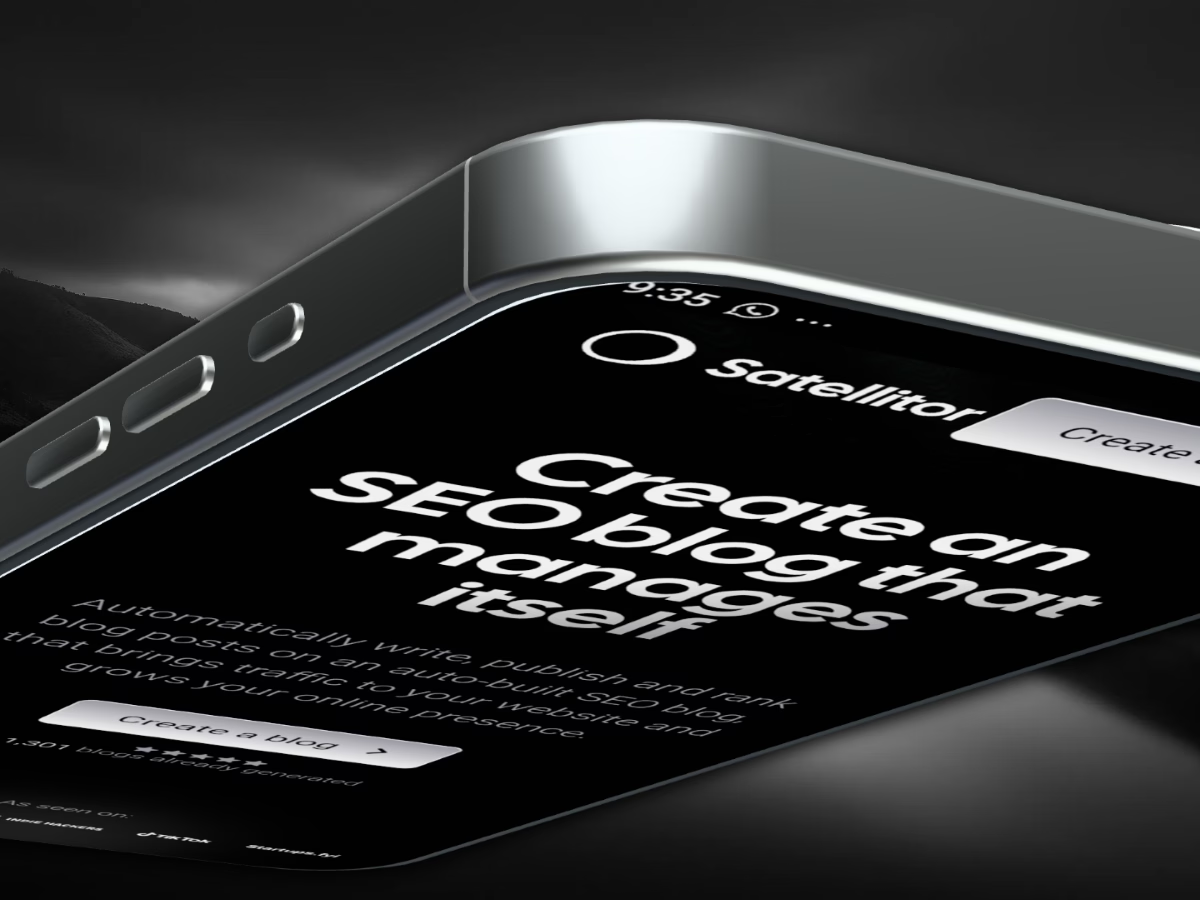
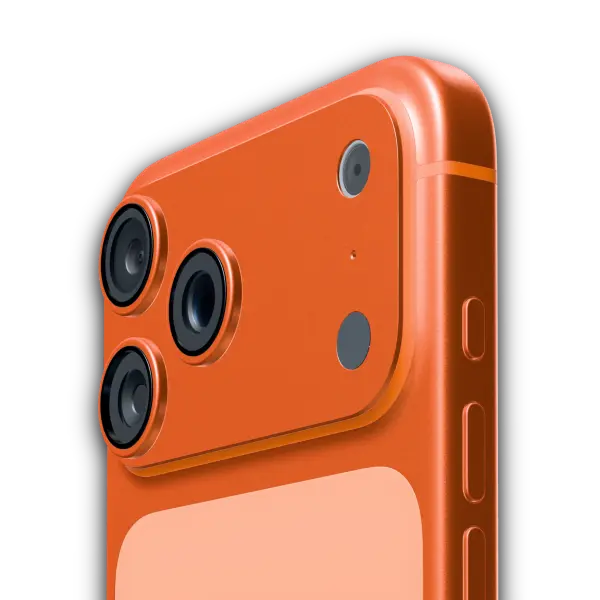
3D Device Mockups
Wrap your screen recordings in hyper-realistic 3D device frames.
Transparency
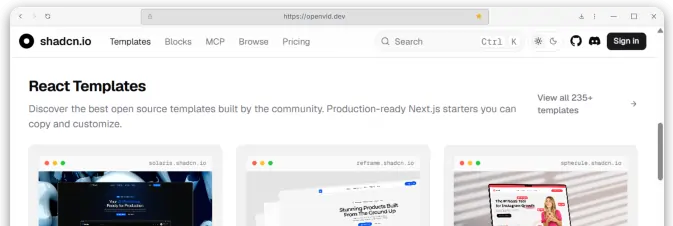
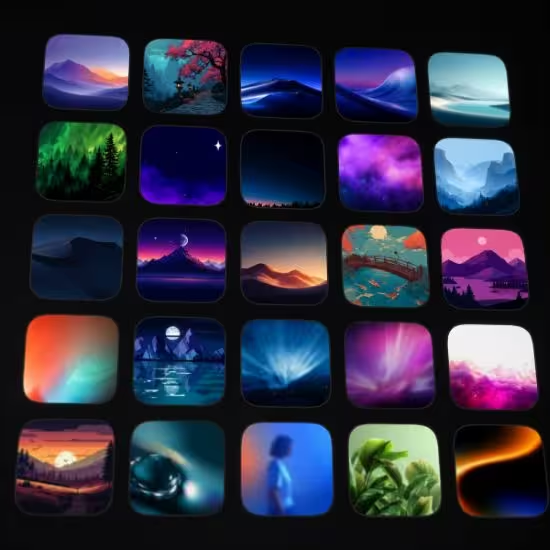
500+
Backgrounds
Cinematic Zoom
Elements & Layers
Text OverlaySVG ShapesBlur Effects
Multi-track Timeline
Layer multiple videos, audio tracks, and zoom the canvas.
Don't just take
our word for it
See how founders and creators are transforming their demos with Openvid.